
Overview
SMS Conversations is a centralized SMS inbox inside Studio Pro that allows your studio to manage and respond to text messages from parents, students, staff, and leads using your dedicated Studio Pro phone number.
With SMS Conversations enabled, customers can reply directly to Robo-Texts and continue the exchange in the same thread. This transforms texting from one-way communication into a fully interactive messaging experience.
This feature is available to customers on the Elite tier in the United States and Canada.
Accessing SMS Conversations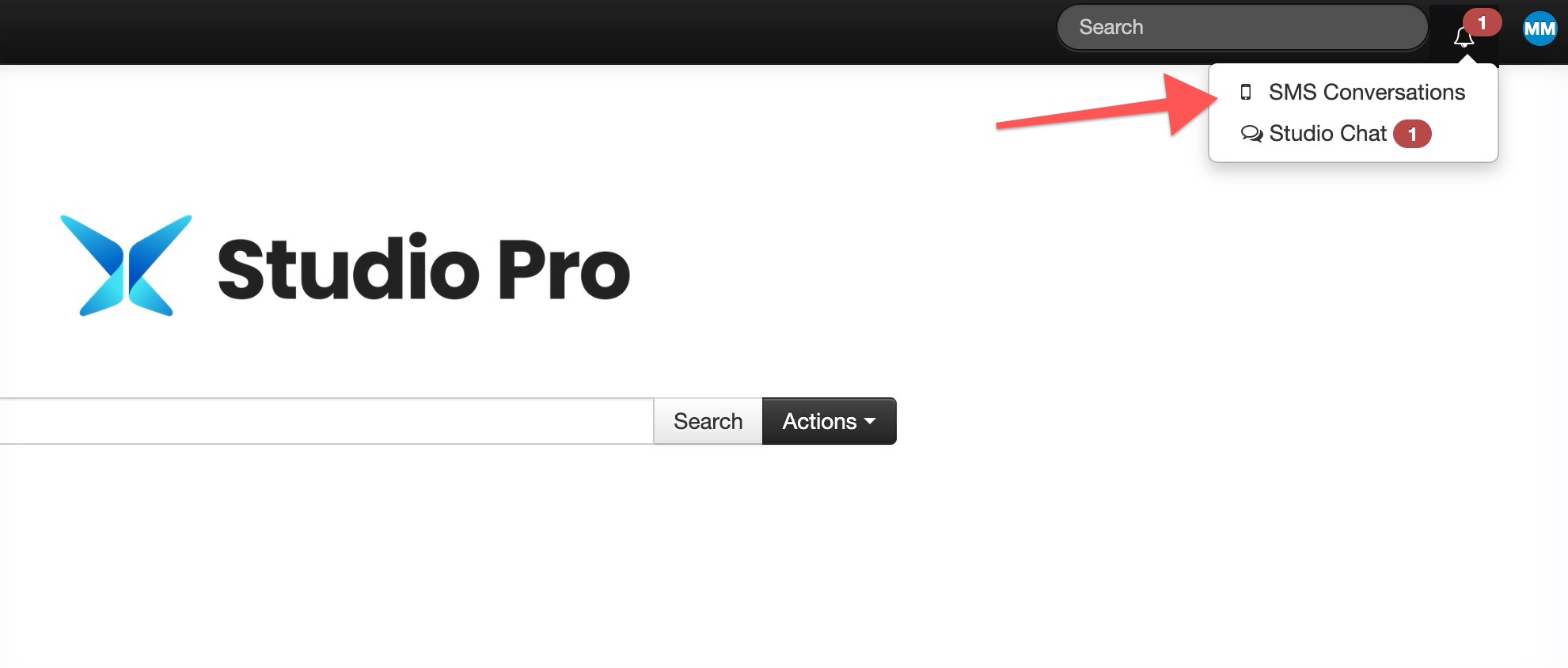
Log in to Studio Pro.
Click the bell icon in the top menu bar.
Select SMS Conversations from the dropdown menu.
Once opened, you will see your SMS Conversations inbox will appear.
Understanding the Inbox
When you open SMS Conversations, you will see:
Unread messages displayed in bold, along with a count of unread conversations
All incoming and outgoing SMS messages tied to your studio number
Filters to quickly sort and locate conversations
Available Filters
You can filter conversations by:
All
Unread
Parents
Students
Staff
Leads
Other
These filters allow you to quickly locate conversations based on profile type.
What “Other” Means
The Other category includes phone numbers that are not currently connected to a Parent, Student, Staff member, or Lead profile within your Studio Pro account.
For example, if someone texts your studio’s toll-free number from a promotion you are running but has not yet been added to your system as a lead, their message will appear under Other.
How to Start an SMS Conversation
You can start an individual SMS conversation directly from the inbox.
If you need to send a message to a group, class, or multiple recipients at once, use the Robo-Texter feature. Messages and replies from Robo-Texter will still appear in the SMS Conversations inbox.
To start a new conversation:
Click the New Message icon in the upper right corner.
Begin typing the person’s name in the Search People field.
Select the correct profile.
Enter your message in the text field.
Click Send.
Important: SMS messages are limited to 160 characters. Messages longer than 160 characters will be automatically split into multiple messages. This is due to carrier regulations and is not under Studio Pro's control.
You have now started a two-way SMS conversation with your customer.
In order for the account to show under Search People, they have to have opted in for texting as well.
Receiving and Replying to Messages
Customers can reply to Robo-Texts or any direct SMS message at any time. Their responses will automatically appear in your SMS Conversations inbox.
Replies will be visible in:
All
Unread
The appropriate profile filter (Parent, Student, Staff, Lead, or Other)
Customers can also react to messages with standard text reactions such as thumbs up or heart icons. These reactions will appear directly within the message thread.
Texting Limits and Pricing
SMS Conversations, available on the Elite Tier, includes:
3,000 texts per month
Combined usage across Robo-Texter, SMS Conversations, and Lead Center
$0.02 per text after the included monthly volume
You can view your current usage directly within the Conversations inbox.
Comments
0 comments
Article is closed for comments.